
Going LIVE
How to live stream your run from your phone
Step by step: stream a run live from your phone with video, a GPS map and stats. Setup, signal, battery and one link for your people.
Published by BEON.RUN · Published
Live streaming a run isn’t just for TV crews any more. The phone in your pocket is enough. With BEON.RUN your people get one link and see the video from the course, your position on a map and your time, distance and pace - all at once. Here is the whole process, from getting your phone ready to the problems you’re likely to meet out there.
Before you head out
- Charge your phone fully. Camera, GPS and video upload together drain the battery fast. For a long run, bring a small power bank.
- Check your data plan. Video uses mobile data. BEON.RUN adapts the video quality to your connection, but longer streams need a decent data allowance.
- Pick a mount. Hand-held video shakes a lot. A chest harness or a running belt with the camera facing forward works much better.
- Decide who can watch. A stream can be public (listed in discovery and on your profile), link-only, or - on PREMIUM and PLATINUM - private.
Going live, step by step
- Open BEON.RUN on your phone - in Safari on iPhone or Chrome on Android - and sign in.
- Tap START, choose your activity and LIVE.
- Allow camera, microphone and location. Without location the stream still works, but viewers won’t get the map.
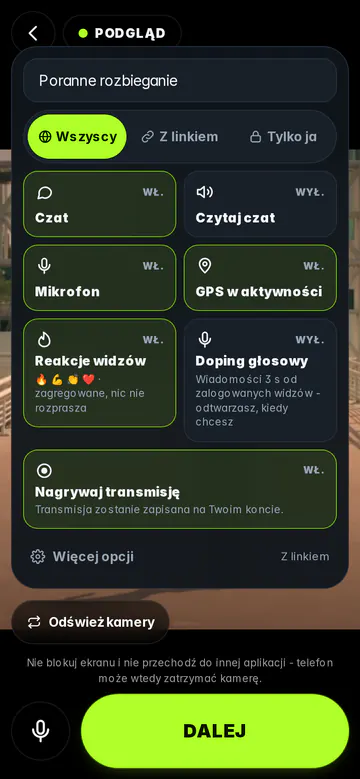
- Check the preview: front or back camera, microphone on or muted. Nothing reaches your viewers until you tap START LIVE.
- Tap START LIVE and share the link - by text, in a messenger or on social media.
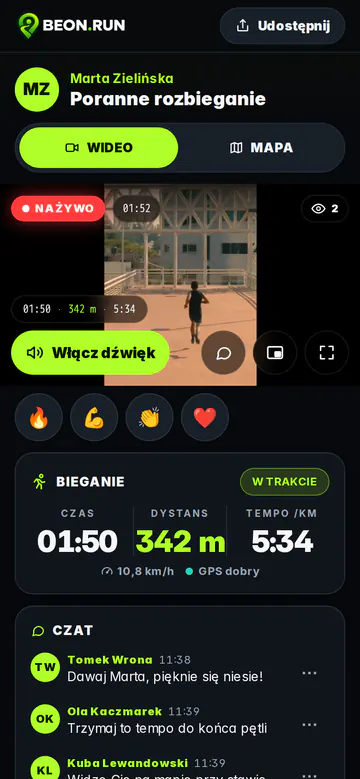
What your viewers see
A viewer opens the link in any browser - phone, laptop or TV - with no app and no account. They see your camera, a map with your current position and the route so far, plus time, distance and pace (or speed when you ride). They can join the chat without an account, too. On a phone they switch between the VIDEO and MAP tabs.
On the run: signal, screen and battery
- Don’t lock the screen. Mobile browsers stop the camera and GPS when the screen locks or another app takes over. BEON.RUN keeps the screen on while you stream and tells you when the system interrupts the video.
- Weak signal is normal. When the network drops for a moment, the stream resumes on its own - same stream, same activity. GPS points wait on the phone and reach the map once you’re back in coverage.
- Stability beats resolution. On the move, smooth lower-quality video is better than sharp video that keeps freezing.
No camera? That works too
If you don’t want to show video or need to save battery, start a GPS-only activity. Your viewers get the map with your position and your stats - just no video.
Common problems
- The browser doesn’t ask for the camera. Check the site permissions in your browser and phone settings, then reload the page.
- The map shows no position. Make sure location is on and the browser is allowed to use it. The GPS status is always visible on the streaming screen.
- The stream ended by itself. Stream length depends on your plan: FREE and PREMIUM have a time limit, PLATINUM has none. See pricing for details.
More about the feature itself: Live streaming.
Try it yourself - your first stream takes a few minutes.
Start for free